The Easiest Way to Create Table in Adobe Illustrator (All Versions)

 
Creating Table in Adobe Illustrator
 
 
I'm not an expert either in Photoshop or Illustrator. Well, I've mid level skill in Photoshop. But in Illustrator, I'm simply a beginner. Even I don't have a basic skill in Adobe Illustrator. Few days ago, I faced a serious problem while creating a table in Illustrator. I searched for a long time but failed to find the proper option to create a table. 
 
 
Today just few hours ago I searched the topic on Google - How to Create a Table in Adobe Illustrator? Many results appear as usual. I chose one from them and learned how to create table in Illustrator. 
 
In this post, I'm gonna share with you what I've learned just now! Yes, here you get the easiest way to create table in Adobe Illustrator step by step with helpful images! Definitely this will help the beginners of Illustrator. This post is not for the experts. ;) 
 
And this method works with all versions of Illustrator. I mean the procedure is same for all versions. Let's begin - 
 
 
Step 1: Run Adobe Illustrator and Open a New Document by pressing Ctrl + N. Choose any paper size you wish. It doesn't matter. 
 
 
Step 2: Now you have to draw a Rectangle. Look at the image below to know where the rectangle tool is located. In Adobe Illustrator CS6, the Keyboard Shortcut for Rectangle Tool is M. You can also press M to enable Rectangle Tool and then draw the size of your table. 
 
Rectangle Tool Location in Adobe Illustrator
 
 
Step 3: Now you have to split the newly created rectangle. But before that make sure the black color is selected in the Color window. Also make sure the rectangle is selected. Now go to Object menu > Path > Split into Grid... . Take help of the image below if necessary. 
 
 
Object > Path > Split into Grid...
 
 
Step 4: Now you get a new Window named Split into Grid. Type the number of Rows and Columns in the box and then hit OK. 
 
 
Split into Grid Menu in Illustrator
 
 
Wait a minute before hitting OK! There are some other options you need to know. Look at the Height, Width and Gutter. By changing the values of these options, you can increase or decrease the spacing between rows and columns. Select the Preview option to check what happens when you change the values. :) 
 
 
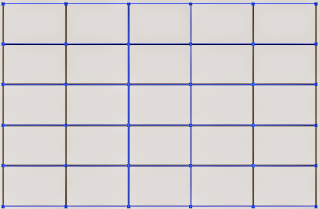
When you're done, you will get a table like the image below: 
 
 
5 Columns 5 Rows Table in Adobe Illustrator


Tips: After creating the table if you hit on the blank area of the document, it might be disappeared! This is occurred when no color is selected. But table is still on the document. You can guess the area of your table and select it with the Direct Selection Tool (Keyboard Shortcut A). Then find the Color window and choose black or any other color. 
 
 
Advice: You can easily avoid the disappearance problem! Before drawing the rectangle, make sure the color (any color) is selected in the Color window. If no color is selected, you should choose a color from there. 


Keyboard Shortcuts used in this Tutorial: (Tested in CS6)
 
  • New Document: Ctrl + N
  • Rectangle Tool: M
  • Object Menu: Alt + O
  • Direct Selection Tool: A
  • Color Window: F6
  • Hand Tool: Space/ H
 

Stay with Marks PC Solution to get more interesting IT topics!


Comments

Post a Comment

Popular posts from this blog

GTA San Andreas Cheat Code (PDF)

After Vice City, San Andreas is the most popular game released by Grand Theft Auto (GTA). Usually GTA releases role playing game. San Andreas is such a game where you can act like a person. You can do everything. You have to take part in missions and complete them.  To make your missions easier, there are lots of cheat codes. If you can properly apply these codes, the tough parts of the game will be easier. Cheat codes are somewhat like keyboard shortcuts of computer programs.  I've shared 63 cheat codes below. There were more cheat codes in my collection, but I've omitted the less important cheats. Effects or result of the cheats are on the left side, and the codes are on the right side.  You can copy the following codes in your PC. And for your convenience, I've also uploaded a PDF file of these codes. You will find the download link at the bottom.  Effect Cheat Code Adrenaline Mode MUNASEF All Cars Explode ALL...

How to Change IP Address on Windows 10 (Easy Way)

    In fact this is not a very difficult task. But in case of emergency you may not find the right option and this happened in my office few days ago! I solved the problem myself and decided to write a note for you at my site . . .   Changing IP Address on Windows 10 Simply move your mouse pointer at the bottom right corner and make a click on network icon > choose Open Network and Internet settings. Follow the image below -    After clicking on this option you will get the following dialogue box. Here you should notice Ethernet properties. Click on it.   Now you will get another screen as below. Here you will get several options. But our concern is IP settings and Properties . If wanna view your IP details then look at the Properties. If you need to change it then hit on the Edit button.    After clicking on the Edit button you will have two options i.e. Automatic (DHCP) & Manual.    In order the change the IP you should choose ...

Office 2016 Activator (KMSPico 10.1.5)

It's been couple of months after the release of final version of Microsoft Office 2016. And maybe you're tired of finding for a working activator for this version. Today I'm gonna share Office 2016 activator with you - no more waiting!! About the Activator   Name: KMSPico 10.1.5 File Size: 3 MB (Approx) File Type: Zipped Folder 100% Neat & Clean - No virus! Activating Capacity . . . KMSPico 10.1.5 is successfully leading the KMS world for last few months. If everything is okay, success rate is 100%. This tool has been tested and verified by Marks PC Solution. With this tool, you can activate -  Office 2016, 2013 & 2010 Windows 10, 8.1 & 8 Hopefully this version will work for both 32 bit & 64 bit versions of Windows. Installing Office 2016 Collect/ Download Office 2016 Professional Plus from Microsoft or somewhere else. Install it as trial version without any key. Use the follow...