
Isn't it very strange to write about such an easy topic in this site? Maybe. But I'm gonna share a personal experience with you. After that you answer whether this post is unnecessary or not.
Few days ago I joined as an Internee at Uttara Bank Ltd. My first assignment in the bank was to print a file that officials failed to open. The Branch Manager knew about my computer skills. He asked me to troubleshoot the problem.
The task was very easy. It was simply a file with .rar extention. A mail was sent from Head Office. There were two files. So it was compressed by WinRar. As officials were not familiar with this file type they were confused. Then I just visited to the Filehippo and download the 7-Zip. After installing this I opened the file and printed this. :)
By the way, all of you (except new users) might be familiar with zip or rar files. There are many free as well as premium applications to compress the files or unpack the zipped files. But today I'm gonna discuss about 7-Zip.
Let's have a look at what 7-Zip is actually-
- 7-Zip is an open source file archiver with a high compression ratio.
- It is mostly used to zip and unzip the files and folders.
- Supported Packing and Unpacking Formats: 7z, XZ, BZIP2, GZIP, TAR, ZIP and WIM
- Supported Unpacking Formats: ARJ, CAB, CHM, CPIO, CramFS, DEB, DMG, FAT, HFS, ISO, LZH, LZMA, MBR, MSI, NSIS, NTFS, RAR, RPM, SquashFS, UDF, VHD, WIM, XAR and Z.
- Finally the installation size is really smart. Less than 3 MB!
First you've to download 7-Zip from the above link. The download size is approximately 1 MB. Then install this on your PC. Installation process is very simple. There is no confusing option.
Portable version is also available. You can download it from here. [Note: If you use portable version you can't get the app shortcuts when right click on files or folders]
After installing it on your PC, 7-Zip icon may appear on your Desktop or Program list. And when you right click on any file or folder you will see the options of 7-Zip.
To Open/ Extract a .Rar File or Folder:
- Make a right click on that file/folder.
- Choose 7-Zip > Open Archive.
- Now you can see the files stored on that folder.
- Hit on Extract button to unzip those files.
To Compress/ Zip Files or Folders:
- Make sure the necessary files or folders are kept in the same folder.
- Now select the files and Click right.
- Choose 7-Zip > Add to Archives.
- Choose the Archive Format > Compression Level and other options as your need.
- Hit OK.
Instructions for Portable Version:
The portable version is same as installed version except one thing. You will not get the shortcuts in mouse right click. All you need to do is just open the application from your PC where you've stored it. The application should be named as: 7-ZipPortable.exe.
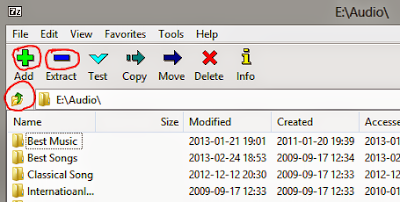
When you need to run this program, simply click twice on it. Immediately after clicking on it, 7-Zip will run. Now, if you wanna archive something first go to the proper Location > Select the Files or Folder > Hit on Add > Choose the Destination Folder, File Format > Compression Level etc > Hit OK.
And if you wanna extract something then simply select the files and hit on Extract. If you do not choose any specific location for the extracted file then they will be extracted to the current folder.
Also have a look at the image below. Important buttons for using 7-Zip are marked there!
Make a relevant comment plz . . .
ReplyDeleteermm,, how can i upload this kind of file to blog??
ReplyDeleteThis is very simple. WordPress allows you to upload directly from its server.
DeleteBut if you're user of Blogger, then you have to upload it to a different uploading site. It could be Google Site or Mediafire or Dropbox etc.
Then you can simply share the link in your blog.
Thanks for contacting us . . .